GridCraft MCP Setup on Windows
Complete guide to setting up GridCraft MCP with Mistral Vibe on Windows systems
Released
October 12, 2026
Time
15-20 minutes
Author
Gabriel Fournier
Tags
GridCraft, MCP, Windows, Setup, Vibe
Prerequisites
- Windows 10 or 11
- PowerShell access
- GridCraft installed at C:\Program Files\GridCraft\
- Internet connection for downloads
1 Install Vibe
First, we need to install uv, which is a Python package installer that we'll use to install Vibe.
In PowerShell, execute the following command:
powershell -ExecutionPolicy ByPass -c "irm https://astral.sh/uv/install.ps1 | iex"Next, install Vibe using uv:
uv tool install mistral-vibeCreate and navigate to a working directory for Vibe:
mkdir vibe
cd vibe
2 Configure GridCraft MCP
Navigate to and open the Vibe configuration file in your text editor:
C:\Users\\.vibe\config.toml Add the following GridCraft MCP server configuration:
[[mcp_servers]]
name = "GridCraft"
transport = "stdio"
command = "powershell"
args = [
    "-NoProfile",
    "-Command",
    "& 'C:\\Program Files\\GridCraft\\gridcraft-cli.exe' mcp --connect 7979",
]
3 Start GridCraft
Start GridCraft in control mode so it's ready to communicate with Vibe:
& "C:\Program Files\GridCraft\gridcraft" --control 7979
You can now start Vibe in your PowerShell by simply typing vibe. It should have access to GridCraft.
4 Setting Up Environment Variables
To avoid manually starting GridCraft from your terminal each time, set up environment variables so GridCraft is always ready to communicate.
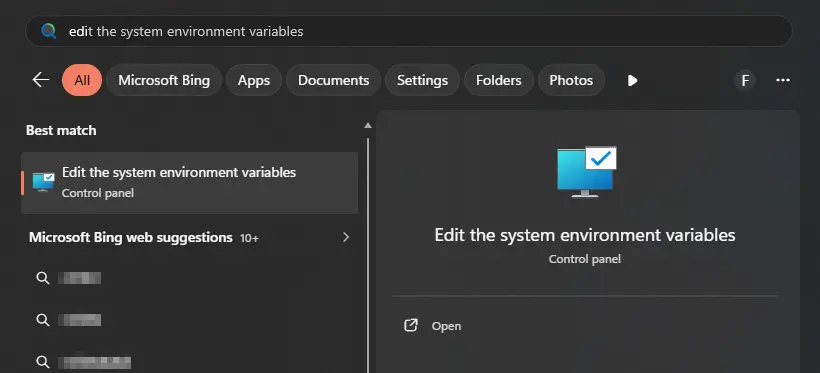
Press the Start button and search for "Edit the system environment variables".
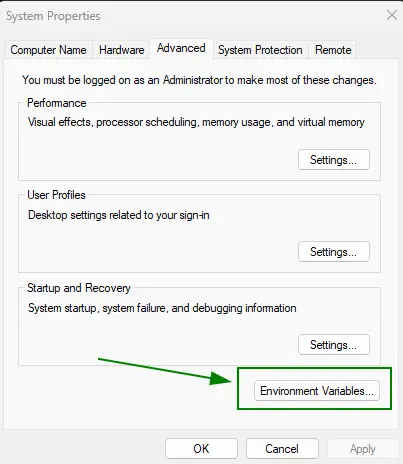
Start the tool. On the bottom right, click on "Environment Variables..."
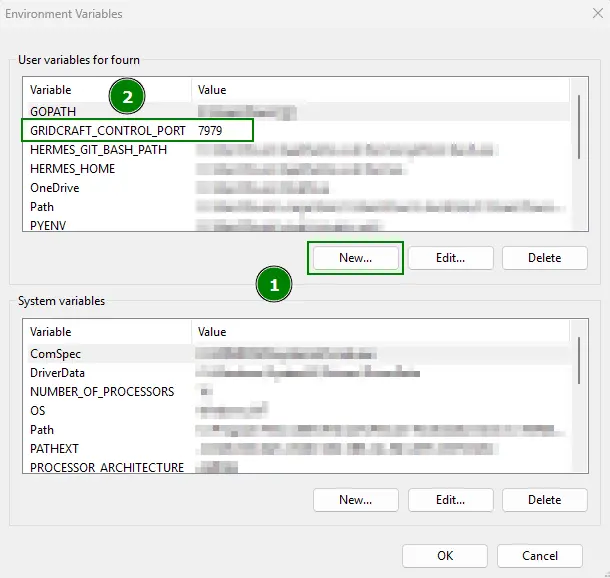
In the User variables section, add a new variable with the name GRIDCRAFT_CONTROL_PORT and the value 7979.
Note: The variable name and value may vary depending on the exact application. These values are specific to GridCraft. Confirm with "OK".
Common Control Port Variables:
| Application | Variable Name | Port |
|---|---|---|
| GridCraft | GRIDCRAFT_CONTROL_PORT | 7979 |
You can now start GridCraft by opening a file. Open a new terminal and start Vibe. Vibe should automatically have access to GridCraft without any additional setup.